

Unreal Engine 5 has changed the way developers create detailed games and real-time 3D experiences. With advanced lighting, virtualized geometry, large environments, and powerful rendering features, developers can build worlds that look highly realistic. However, impressive visuals still need good asset optimization. A poorly optimized 3D model can use unnecessary memory, increase processing requirements, and affect the performance of the entire project.
Learning how to optimize 3D models for Unreal Engine 5 is important for game developers, 3D artists, designers, and studios. Optimization is not only about reducing polygon counts. It also includes improving topology, managing textures, creating efficient UV maps, controlling materials, preparing collision meshes, using Level of Detail (LOD), and choosing the right workflow for the target platform.
The goal is simple: create a model that looks as good as necessary while using resources efficiently. In this guide, we will explain the most important ways to optimize 3D models for Unreal Engine 5 and how to avoid common mistakes during production.
Why 3D Model Optimization Matters in Unreal Engine 5
Unreal Engine 5 can handle highly detailed assets, but a game is rarely made from one model. A typical scene can contain characters, buildings, vehicles, furniture, trees, rocks, weapons, visual effects, lights, textures, animations, and many other assets.
Every asset contributes to the overall workload. If many assets are unnecessarily complex, the project can require more memory and processing power than needed. This can lead to slower loading, reduced frame rates, or poor performance on lower-end devices.
Proper optimization can help developers achieve:
- More stable game performance
- Better frame rates
- Lower memory usage
- Faster asset loading
- More efficient large environments
- Better performance on different hardware
- Smaller and easier-to-manage asset libraries
- A smoother player experience
Optimization is especially important for large open-world games, multiplayer projects, VR applications, mobile games, and projects that need to support several types of hardware.
What Makes a 3D Model Optimized for UE5?
An optimized 3D model is not simply a low-poly model. A good game asset should have the right geometry, textures, UVs, materials, collision setup, and file structure for its intended use.
| Optimization Area | What to Check | Main Benefit |
|---|---|---|
| Geometry | Polygon count and unnecessary details | Reduces unnecessary geometry workload |
| Topology | Clean and efficient mesh structure | Supports easier editing and animation |
| UVs | Efficient UV layout | Uses texture space more effectively |
| Textures | Resolution and compression | Helps control memory usage |
| Materials | Material count and complexity | Can reduce rendering overhead |
| LOD | Different levels of detail | Reduces detail at greater distances |
| Collision | Simple collision geometry | Improves physics efficiency |
| Export | Scale, orientation, and settings | Reduces import problems |
1. Optimize the Polygon Count
Polygon count is one of the first things to consider when optimizing a 3D model. Polygons form the surface of a 3D object, and more polygons can allow an artist to create more detailed shapes.
However, more polygons are not automatically better. If a small background object contains extremely detailed geometry that players can barely see, that additional geometry may provide little visual value.
Instead of using the same polygon target for every asset, consider the role of each model in the game. A main character that is frequently shown close to the camera may need significantly more geometry than a small object sitting far away.
The best approach is to keep important geometry while removing unnecessary details. Pay particular attention to the model’s silhouette because changes to the outer shape are usually more noticeable than hidden geometric details.
2. Use Clean Topology
Topology describes how vertices, edges, and polygons are connected on a model. Clean topology makes an asset easier to edit and can be especially important for characters and objects that need animation.
When optimizing a model, look for unnecessary edge loops, hidden geometry, and areas that contain more detail than needed. At the same time, do not simplify the model so aggressively that important curves or deformations stop working correctly.
Characters usually need careful topology around areas such as joints and facial features because those areas may deform during animation. Static props can often use simpler topology depending on their shape and purpose.
3. Use Nanite Where Appropriate
Nanite is one of the major technologies associated with Unreal Engine 5. It is designed to support highly detailed virtualized geometry and can reduce some of the traditional limitations associated with extremely detailed meshes.
This does not mean that artists should completely ignore optimization. Nanite does not remove the importance of textures, materials, memory management, collision, animation, and overall scene performance.
Whether Nanite is suitable depends on the asset and the project. Developers should test their assets on the actual target hardware and evaluate performance rather than assuming that every model should use the same approach.
For some assets, traditional optimized meshes and LOD workflows may still be useful. For others, Nanite can provide an effective way to work with highly detailed geometry.
4. Create Appropriate LODs
LOD stands for Level of Detail. It is a technique where different versions of a model are displayed depending on the distance from the camera.
For example, a detailed model can be used when the player is standing close to an object. When the player moves away, a simpler version can be displayed because many small details are no longer visible.
| Viewing Distance | Possible Model Detail | Purpose |
|---|---|---|
| Very close | High detail | Preserve important visual details |
| Medium | Medium detail | Balance quality and performance |
| Far | Low detail | Reduce geometry processing |
| Very far | Very low detail | Maximize scene efficiency |
LOD can be particularly helpful in large environments where many objects are visible at the same time.
5. Optimize Textures
Geometry is not the only part of a 3D asset that affects performance. Textures can also use significant memory, especially when a scene contains many high-resolution images.
A common mistake is giving every asset extremely large textures regardless of its importance. A hero character may need detailed textures, while a small background prop may not.
When optimizing textures, consider:
- Texture resolution
- Compression settings
- Number of texture maps
- Texture streaming
- Camera distance
- Target hardware
- Importance of the asset
The goal is to use enough texture detail to achieve the required visual quality without wasting memory.
6. Keep Materials Efficient
Materials control how surfaces look and respond to light. A model may need several materials when it contains different surface types, but using too many separate materials can make an asset more complicated.
Whenever practical, combine related surfaces into efficient material setups. Reusing materials and texture resources can also help keep an asset library organized.
Material complexity should also be considered. A material with a simple setup is generally easier to manage than one containing a large number of unnecessary calculations.
7. Create Efficient UV Maps
UV mapping determines how a 2D texture is placed across a 3D model. A good UV layout makes efficient use of available texture space and helps maintain consistent texture quality.
When creating UVs, avoid wasting large areas of the texture with tiny or unnecessary UV islands. At the same time, important parts of the model should receive enough UV space to preserve the required visual detail.
Some assets may also require additional UV channels depending on the project’s lighting or technical requirements. The exact setup should be determined by how the asset will be used in Unreal Engine 5.
8. Use Simple Collision Meshes
Collision geometry helps Unreal Engine determine how objects interact with the player, physics objects, and the environment. The visual model does not always need to be used as the collision model.
For example, a detailed table may contain thousands of polygons, but its collision could potentially be represented by a few simple shapes.
Using simple collision geometry where appropriate can reduce unnecessary physics calculations while still producing the expected gameplay behavior.
9. Remove Unnecessary Hidden Geometry
Some parts of a model may never be visible during normal gameplay. If a section is permanently enclosed inside another object, modeling it in full may not provide any useful visual benefit.
Removing unnecessary hidden geometry can make assets lighter and easier to manage. However, artists should first understand how the model will be used. Animations, camera movement, destruction effects, or gameplay mechanics may reveal areas that initially appear hidden.
Optimization should therefore be based on actual gameplay requirements rather than assumptions.
10. Use the Correct File Format and Export Settings
Correct export settings help prevent problems when transferring models from software such as Blender, Maya, 3ds Max, or other modeling applications into Unreal Engine 5.
Before exporting, check the model’s scale, orientation, smoothing, normals, UVs, materials, and animation data if applicable.
It is also useful to test one asset before producing hundreds of models. A successful test import can establish a standard workflow for the entire project.
If your workflow uses several common 3D formats, understanding the differences between STL, OBJ, and FBX file formats can help when planning asset delivery.
11. Optimize Models According to Camera Distance
Camera distance should influence the amount of detail used in an asset. A model that fills the screen needs more detail than one that occupies only a few pixels.
This simple principle can save a significant amount of unnecessary work in large environments.
For example, a large building visible in the distance may not need detailed door handles, small window frames, or interior objects if players will never get close enough to see them.
On the other hand, an important object that players can inspect closely may require additional geometry and higher-quality textures.
12. Use Modular Assets for Large Environments
Large environments can contain thousands of objects. Creating every part as a completely unique asset can increase production time and make optimization more difficult.
Modular modeling provides an alternative. Artists can create reusable pieces such as walls, floors, doors, windows, columns, stairs, and other components. Developers can then combine these pieces to create larger environments.
Modular assets can improve consistency and reduce repetitive modeling work. They can also make it easier to manage and optimize groups of related assets.
13. Manage Texture Resolution Carefully
Texture resolution should be selected according to the asset’s importance. There is no reason to use the largest possible texture for every object.
| Asset | General Approach |
|---|---|
| Main character | Higher texture detail when needed |
| Main vehicle | Detailed textures based on camera use |
| Important prop | Medium to high detail |
| Background prop | Lower resolution where appropriate |
| Distant object | Lower detail when visually acceptable |
Actual texture requirements should always be tested in the game rather than decided from a general rule alone.
14. Test Assets Inside Unreal Engine 5
A model that looks perfect inside a 3D modeling program may behave differently after being imported into Unreal Engine 5. That is why testing should be part of the modeling workflow.
Import assets into the engine early and check their scale, materials, textures, lighting, collision, animations, and overall performance.
Testing early makes it easier to identify problems before the project contains hundreds of similar assets. Developers can then update their modeling and export standards based on real results.
15. Profile the Scene
Optimization should be based on measurable performance wherever possible. Unreal Engine provides tools that can help developers understand what parts of a project are using system resources.
Profiling can help identify whether a problem is related to geometry, materials, textures, lighting, effects, or another part of the scene.
This is better than blindly reducing the quality of every asset. If one particular asset or system is causing a problem, developers can focus optimization efforts where they will have the greatest effect.
16. Optimize the Entire Scene
Optimizing individual models is important, but scene-level optimization is equally important. A single efficient asset may have very little impact if the overall scene contains thousands of complex objects and materials.
Consider how assets interact with each other. Repeated objects, large texture sets, complex materials, lighting, shadows, effects, animation, and streaming can all contribute to overall performance.
For this reason, optimization should continue throughout development rather than being treated as a final step.
Low Poly vs High Poly for Unreal Engine 5
Low poly and high poly modeling both have roles in modern game development. The right choice depends on the asset and the final use.
Low poly models are useful when efficient real-time performance is a priority. High poly models can be useful for creating detailed source assets, close-up visuals, and texture information.
In many workflows, artists create a detailed model and then prepare an optimized version for real-time use. This can provide a good balance between visual quality and performance.
You can learn more about this approach in our guide to low poly vs high poly modeling.
Game Ready Models and Unreal Engine 5
A game ready model is prepared specifically for real-time use. It normally includes the appropriate geometry, UVs, textures, materials, and file settings needed for the target project.
Game ready modeling also considers how the asset will be viewed and how it will interact with the game. A character may require rigging and animation support, while a static prop may only need an optimized mesh, materials, and collision.
If you are creating assets for a game, our guide to game ready 3D models provides more information about the requirements of production-ready game assets.
Common Optimization Mistakes
Using Too Many Polygons
Adding polygons simply because a computer can handle them is not a good optimization strategy. Extra geometry should provide a visible or technical benefit.
Using Huge Textures for Every Asset
Large textures can consume considerable memory. Texture resolution should match the importance and viewing distance of the asset.
Using the Visual Mesh for Collision
A detailed visual mesh may not be necessary for collision. Simple collision shapes can often provide the required gameplay behavior more efficiently.
Ignoring LOD Requirements
Large scenes may benefit from different levels of detail, especially when many objects are visible at different distances.
Skipping Performance Testing
Optimization decisions should be tested inside the actual Unreal Engine project. Assumptions made only inside modeling software may not reflect real game performance.
Optimizing Too Late
Waiting until the final stage to think about optimization can create unnecessary rework. Technical requirements should be discussed before production begins.
Recommended Workflow for Optimizing UE5 Models
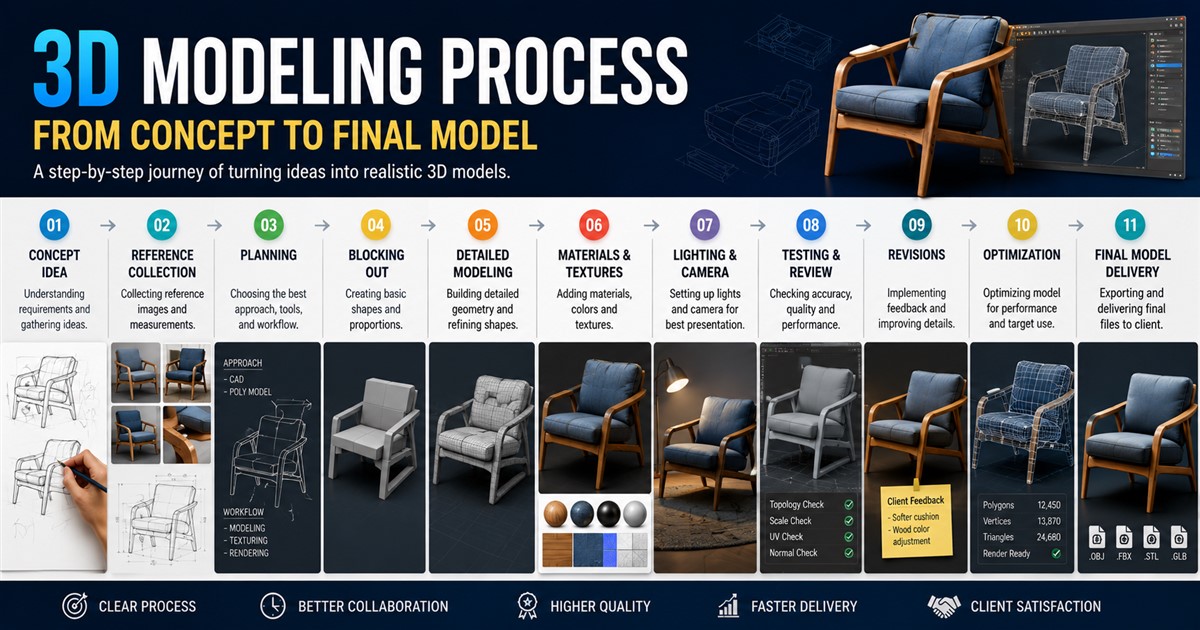
A structured workflow can make optimization easier and more consistent. A typical process can include the following steps:
- Define the target platform and hardware.
- Identify the purpose of the asset.
- Collect references and technical requirements.
- Create the base model.
- Add only the required geometric detail.
- Clean and optimize topology.
- Create efficient UV maps.
- Prepare textures and materials.
- Create LODs when required.
- Prepare appropriate collision geometry.
- Export using the correct settings.
- Import the asset into Unreal Engine 5.
- Test the asset at different distances.
- Profile performance and make adjustments.
- Finalize the asset for production.
This type of structured workflow is part of a broader game asset creation pipeline and can help teams maintain consistent standards across large projects.
How to Optimize Different Types of Game Assets
Different assets have different requirements. A character, vehicle, building, weapon, and small prop should not necessarily use the same optimization strategy.
| Asset Type | Important Optimization Areas |
|---|---|
| Characters | Topology, deformation, textures, materials, LODs, animation |
| Vehicles | Geometry, materials, textures, collision, LODs |
| Buildings | Modular design, geometry, materials, textures, LODs |
| Weapons | Geometry, UVs, textures, materials, close-up detail |
| Small props | Polygon count, texture size, materials, collision |
| Environment assets | Geometry, LODs, materials, textures, scene density |
Benefits of Professional 3D Modeling for Unreal Engine Projects
Creating optimized assets for Unreal Engine 5 requires both artistic and technical skills. A professional 3D artist needs to understand modeling, topology, UV mapping, materials, textures, optimization, and game engine requirements.
This becomes especially important when a project requires hundreds of assets. A consistent workflow can help ensure that models follow the same technical standards and are easier to integrate into the game.
Professional 3D game modeling services can support studios that need characters, environments, vehicles, weapons, props, and other game-ready assets.
Before hiring a modeling team, it is useful to provide information about the game engine, target platform, polygon requirements, texture requirements, file formats, animation needs, and delivery schedule.
Frequently Asked Questions
What does 3D model optimization mean in Unreal Engine 5?
3D model optimization means preparing an asset so that it provides the required visual quality while using resources efficiently. It can involve geometry, textures, UVs, materials, collision, LODs, and other technical settings.
Does Unreal Engine 5 require low-poly models?
No. Unreal Engine 5 can support highly detailed geometry, particularly with technologies such as Nanite. However, assets should still be designed and tested according to the project’s requirements and target hardware.
What is the best polygon count for Unreal Engine 5?
There is no single polygon count that is best for every asset. The correct amount depends on the model’s purpose, camera distance, target hardware, visual quality requirements, and rendering workflow.
Are LODs still useful in Unreal Engine 5?
LODs can still be useful depending on the project and asset. Their value depends on the rendering setup, target platform, asset type, and how objects are viewed in the scene.
Should I use Nanite for every model?
Not necessarily. Nanite can be very useful for suitable assets, but developers should evaluate the complete project and test performance on their target hardware before choosing a workflow.
How can I reduce the memory usage of a 3D model?
You can review texture resolution, texture count, geometry, material complexity, and other asset data. Removing unnecessary information and using appropriate settings can help reduce memory usage.
Can Blender models be optimized for Unreal Engine 5?
Yes. Models created in Blender can be prepared for Unreal Engine 5. Artists should check geometry, UVs, materials, scale, orientation, animations, and export settings before importing the asset.
What is more important: polygon count or texture size?
Both can matter. Their impact depends on the project and asset. A model with efficient geometry can still use a lot of memory if it contains many large textures, while excessive geometry can also create unnecessary workload.
How do I optimize a game character for UE5?
Start with appropriate topology and geometry, then optimize UVs, textures, materials, animation data, and LODs where needed. Test the character inside Unreal Engine 5 and adjust the asset based on actual performance requirements.
Final Thoughts
Optimizing 3D models for Unreal Engine 5 is about finding the right balance between quality and performance. A model does not need to contain the maximum possible number of polygons or the largest possible textures to look impressive.
Start by understanding the purpose of the asset, the target platform, the expected viewing distance, and the visual quality required. Then optimize the areas that matter most, including geometry, topology, UVs, textures, materials, collision, and LODs.
Unreal Engine 5 provides powerful technologies that can support highly detailed environments, but good asset planning is still important. Features such as Nanite can change traditional optimization workflows, yet developers should continue to test their projects and make decisions based on actual performance.
The most effective workflow is to optimize throughout production rather than waiting until the end. Build a clear asset standard, test models early, profile the scene, and adjust assets based on real requirements.
With the right approach, developers can create detailed and visually impressive Unreal Engine 5 environments while keeping their projects efficient, scalable, and responsive. Whether you are developing characters, props, vehicles, buildings, or complete game environments, thoughtful 3D model optimization can make a major difference to the final experience.
If you need help creating or optimizing assets for a real-time project, you can contact a professional 3D modeling team and discuss your Unreal Engine 5 requirements, target platform, asset types, and technical specifications.